
Introduction
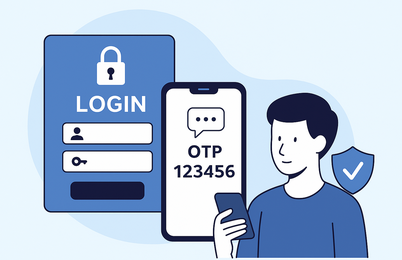
Multi-Factor Authentication (MFA) enhances application security by requiring users to present two or more independent credentials — typically, something they know (password) and something they have (a one-time password). Pega Platform supports MFA to ensure that the user login process is more secure and resilient against unauthorized access.
MFA Support in Pega
- The Pega Platform supports MFA by sending One-Time Passwords (OTP) via email or SMS to verify user identity during authentication.
- This MFA mechanism is built-in and can be enabled via Security Policies within the application, ensuring additional validation during login or sensitive operations like password change.
How to Configure MFA in Pega
Step 1: Configure Security Policies
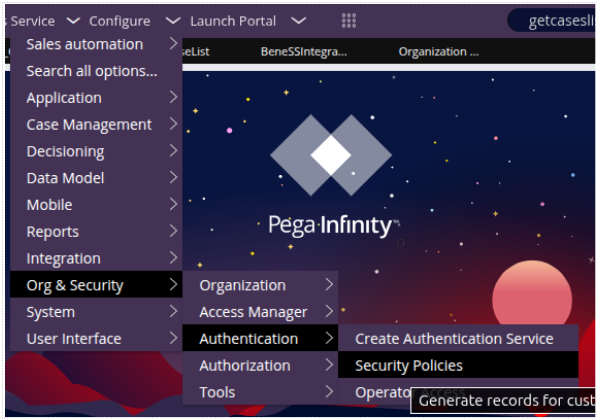
- In header to dev studio, go to Configure → Authentication → Security Policies
- In the Security Policies tab under Multi-factor authentication policies, enable OTP delivery (via email or SMS).
- Define policy parameters such as:
- Valid duration for the OTP (e.g., 120 seconds).
- Email account
- Save the policy.
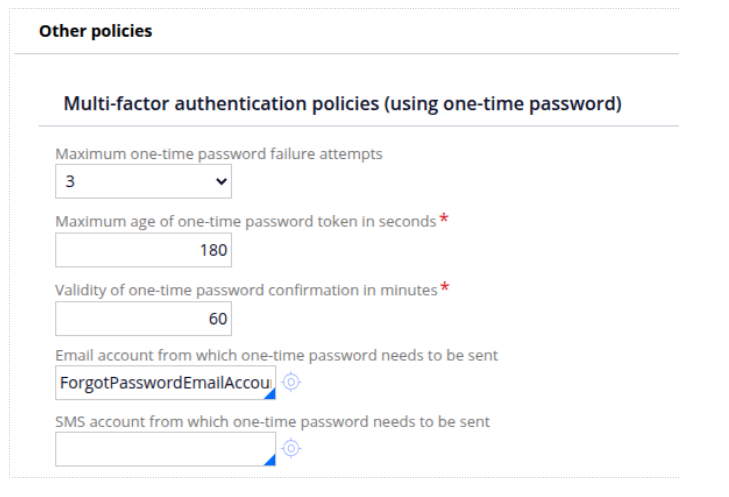
This setup ensures that, on login, Pega will automatically generate an OTP and deliver it to the user via the chosen channel.
Step 2: Customize OTP Correspondence (Optional)
To customize the OTP message:
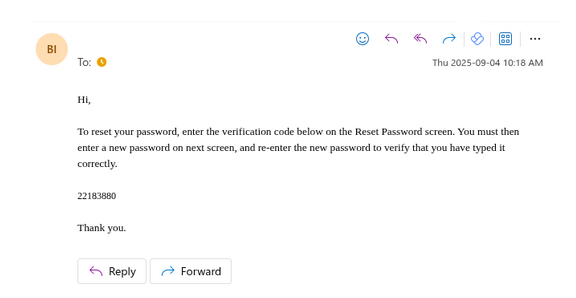
- Override the default correspondence rule, pyDefaultOTPCorr, pyForgotPasswordOTPCorr(to send OTP to reset the password), or create a new one.
- This rule defines the email body or SMS content that carries the OTP.
Authentication Flow with MFA
- Users log in with their username and password.
- Pega generates a one-time code (OTP).
- OTP is delivered via email or SMS.
- The user enters the OTP (within the valid time).
- If correct, the user is authenticated and granted access; otherwise, access is denied.
The “Trouble logging in?” option on the Pega login screen integrates with Security Policies to allow secure password recovery with MFA.
Flow:
- User clicks “Trouble logging in?” on the login page.
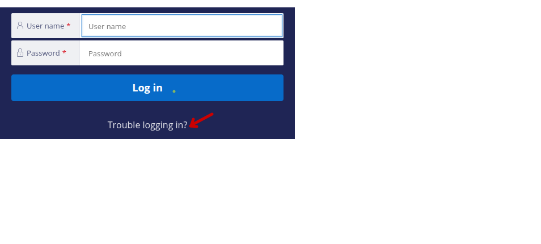
- The system prompts for the username (operator ID).
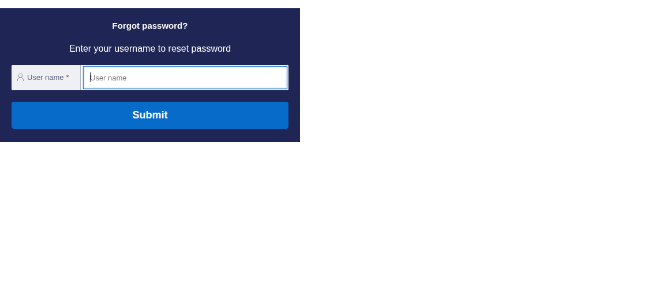
- Pega validates the account and generates a One-Time Password (OTP).
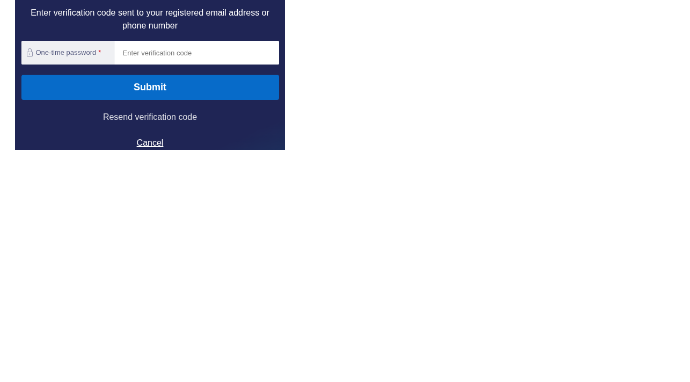
- The OTP is delivered via email or SMS, depending on the policy.
- The user enters the OTP on the verification screen.
- Once verified, the system allows the user to create a new password.
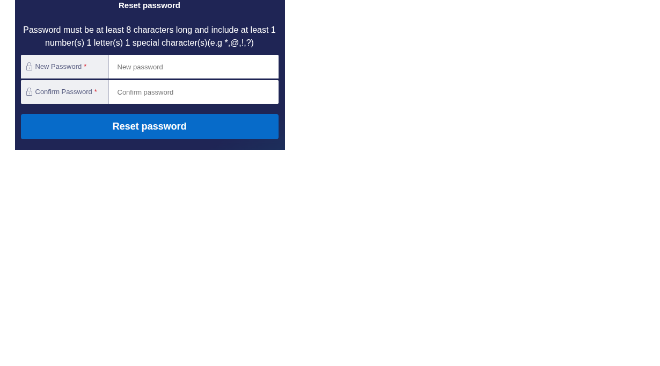
- The user logs in with the new credentials.
–TEAM ENIGMA
