

Property Masking
Property masking in Pega is a security feature that allows you to restrict access to the values of specific properties by using property-level access control policies. This ensures that sensitive information is protected and only partially visible to users who do not have the necessary permissions to view the full value.
When masking an embedded property, it’s essential to set up the ABAC property read policy in the work class where the embedded property is referenced, rather than in the class where the leaf property resides. Incorrect configuration can lead to the masked property being visible to unauthorized users.
Here’s how it works:
Access Control Policies:
You can create access control policies to define how properties should be masked. These policies are configured in the Access Control Policy rule in Pega.
Masking Options:
Pega provides several masking options for different property types:
DateTime:
- Mask entire date
- Mask year
- Mask day and month
Integer:
- Mask with a specified number of digits
Text:
- Full mask (replace the entire text with a character)
- Mask all but the last ‘N’ characters
Configuration Steps:
To configure property masking, follow these steps:
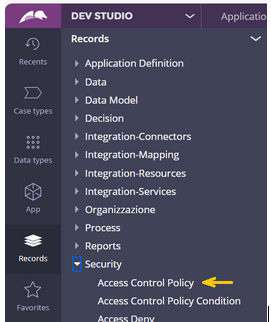
1. Navigate to Access Control Policy:
Go to Records > Security > Access Control Policy and click Create.
2. Create Policy:
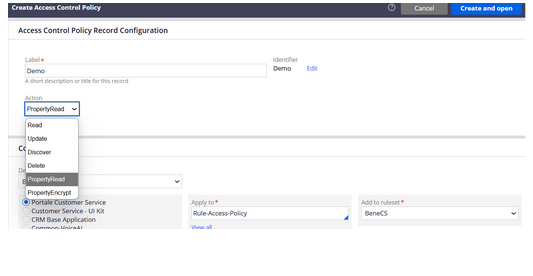
- Enter the policy name in the Label field.
- Select PropertyRead from the Action list.
- In the Apply to field, enter the class.
- Select a ruleset in the Add to ruleset field.
- Click Create and open.
Optional Settings:
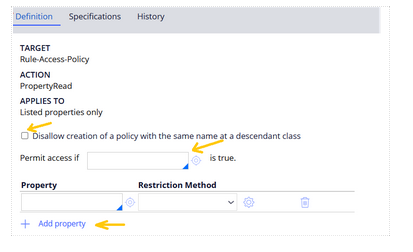
To prevent overriding in descendant classes, select
Disallow creation of a policy with the same name at a descendant class.
3. Define Conditions:
In the Permit access if field, enter the condition rule name for access permission.
4. Add Property:
Click Add property and select the property to mask.
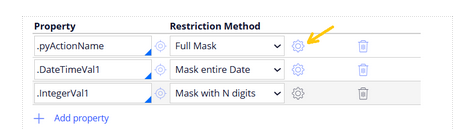
Choose the masking option in the Restriction Method field:
- DateTime: Mask entire Date, Mask Year, Mask Day and Month.
- Integer: Mask with N digits.
- Text: Full Mask, Mask all but last ‘N’, Mask all but first ‘N’.
5. Configure Masking Options:
Click the Switch to edit mode icon.
Fill out the required fields in the Masking and Formatting Options form.
DateTime property type:
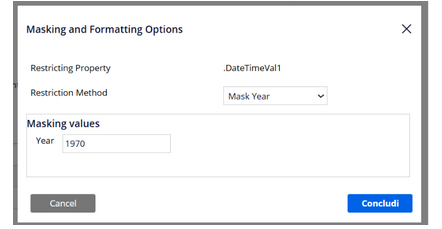
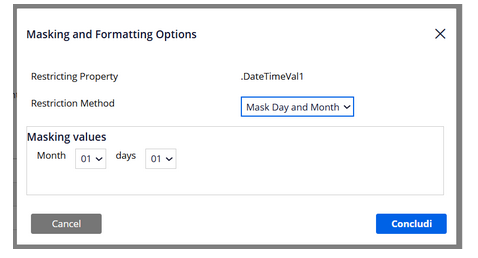
In the Masking values section, choose or enter the value to replace for Month, Day, or Year based on the selected masking option and click on Submit.
- Mask entire date
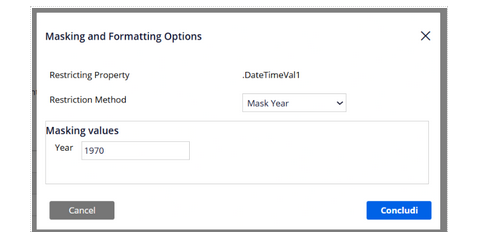
- Mask Year
- Mask Day and Month
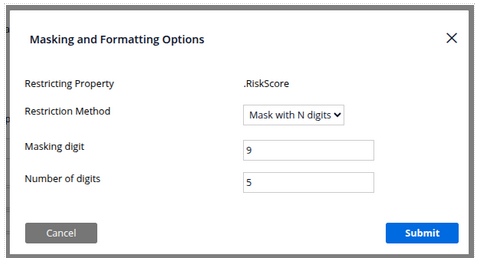
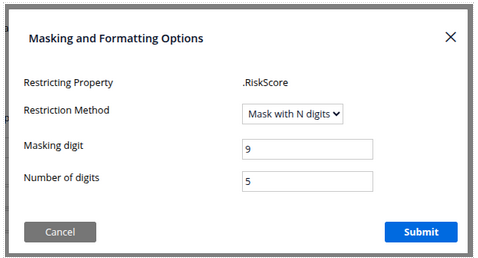
Integer Property Type:
- In the masking digit field, enter a digit, letter, or symbol to replace the property value.
- In the Number of digits field, enter the number of times the digit, letter, or symbol should appear in the property values.
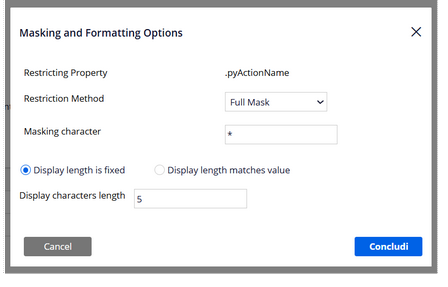
Text Property Type – Full Mask:
- In the Masking character field, enter a digit, letter, or symbol to replace the property value.
- If Display length is fixed, enter the length in the Display characters length field.
Text Property Type – Mask All But Last ‘N’ / First ‘N’:
- In the Masking character field, enter a digit, letter, or symbol to replace the property value.
- In the Number of unmasked characters field, enter the number of characters that should not be replaced.
- Select either Display length is fixed or Display length matches value.
6. Click Save.
–TEAM ENIGMA
