
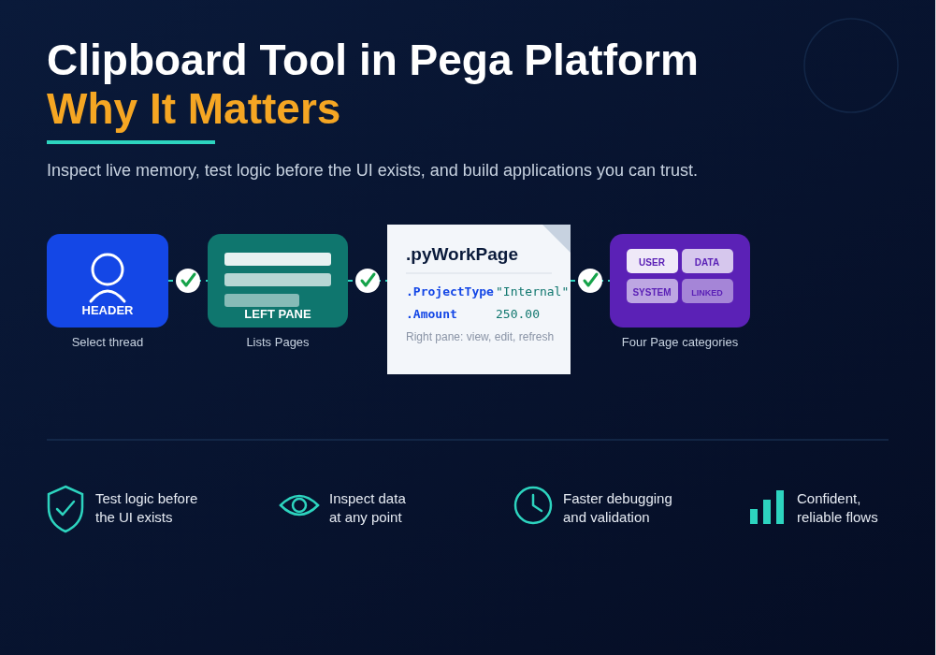
The Pega Platform™ Clipboard Tool allows developers to view and manage data currently stored in memory during application execution. It organizes and displays every active Clipboard Page, along with the properties defined on each page and their corresponding values.
In addition to viewing runtime data, the Clipboard Tool enables developers to add or modify property values. This capability is particularly useful when testing application functionality that depends on data not yet available through a Case or user interface.
For example, consider an Expense Report Case where the flow branches based on the Project Type. If the application does not yet provide a UI field for selecting the project type, you can manually set the property’s value in the Clipboard Tool and verify that the flow follows the correct path. This allows developers to validate business logic without waiting for the UI to be implemented.
The Clipboard Tool is accessible from the Developer Toolbar and is divided into three main sections:
- Header
- Left Pane
- Right Pane
Parts of the Clipboard Tool
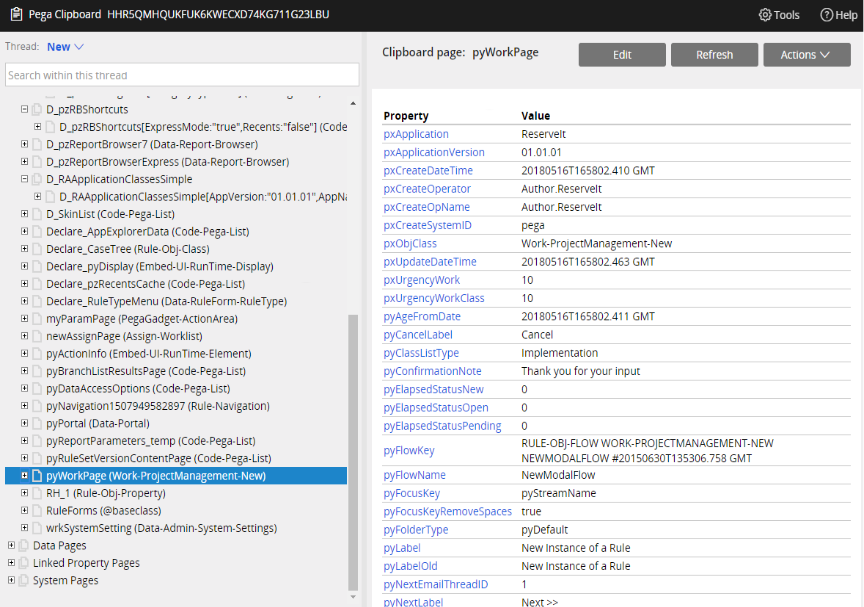
Header
The Header allows you to select the thread whose Clipboard data you want to inspect. Each thread represents a single action currently managed by Pega Platform.
The Clipboard displays different threads depending on the studio you are using:
- App Studio displays a dedicated App Studio thread.
- Dev Studio displays threads for both App Studio and Dev Studio.
Additional threads are created for each open Rule form and open Case (or folder). Pega Platform assigns a separate thread to every action to ensure that data associated with one action does not interfere with another.
Left Pane
The Left Pane lists all Clipboard Pages available for the selected thread.
For each Clipboard Page, the tool displays:
- Page Name
- Associated Class
If a page contains embedded pages, an expand arrow appears next to the page name, allowing you to navigate through the page hierarchy.
Right Pane
The Right Pane displays all properties available on the selected Clipboard Page together with their current values.
From this pane, developers can:
- View property values
- Edit property values
- Refresh the selected Clipboard Page
- Perform additional actions for testing and debugging
This makes the Clipboard Tool an essential utility for inspecting runtime data and troubleshooting application behavior.
How Clipboard Pages Are Organized
Pega Platform organizes Clipboard Pages into four primary categories, making it easier to understand and manage runtime data during application execution.
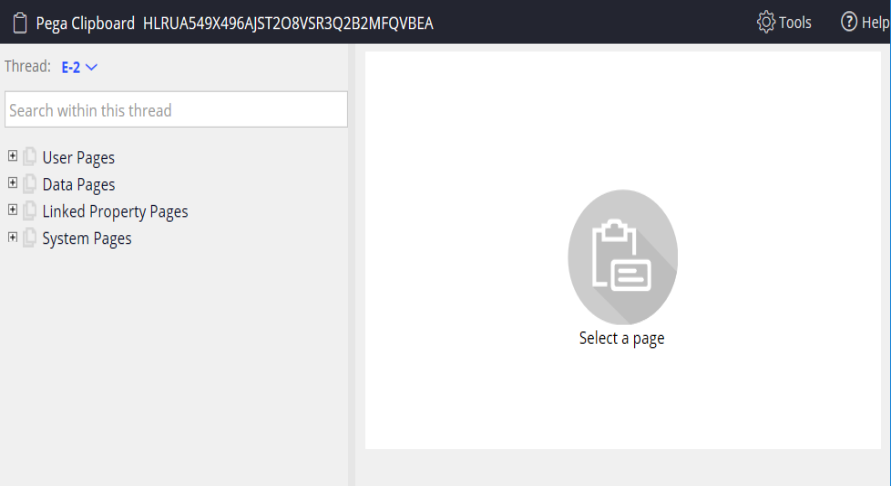
User Pages
User Pages are created directly or indirectly through user actions. They contain data related to the work currently being performed in the selected thread.
For example, when a user completes a form, the entered information is stored on the pyWorkPage User Page. Similarly, when a developer configures or tests a Rule, the pages containing data associated with that Rule are displayed under the User Pages category.
Data Pages
Data Pages are read-only Clipboard Pages created from Data Page Rules. They retrieve and cache data from external systems or systems of record, allowing the application to reuse the information without repeatedly accessing the source.
For example, an application that converts US Dollars (USD) to Euros (EUR) can store the latest exchange rates in a Data Page so that multiple users can access the cached data efficiently.
Linked Property Pages
Linked Property Pages are read-only pages automatically created by related properties. They contain information about the data types referenced by those properties.
Related properties are advanced data structures that are typically configured by experienced Pega developers and architects.
System Pages
System Pages contain information about the current user session and application context.
These pages maintain runtime details such as:
- Active user
- Active application
- Current session
- User time zone
For example, when a user signs in to Pega Platform, the platform creates a System Page that stores session-specific information, including the user’s time zone and other requestor details.
Summary
The Clipboard Tool is one of the most valuable debugging and testing tools in Pega Platform. It enables developers to inspect runtime data, update property values, and verify application behavior without modifying the user interface.
By organizing runtime data into User Pages, Data Pages, Linked Property Pages, and System Pages, the Clipboard provides a structured way to manage information during application execution. Understanding how these page categories work is essential for effective debugging, testing, and building reliable Pega applications.
