
Imagine releasing a new version of your web application. All unit tests pass. Your API tests are green. Playwright successfully completes the login, navigation, and checkout workflows.
But after deployment, users report that the navigation menu is overlapping the page content, buttons are misaligned, and the mobile layout is broken.
What went wrong?
Your tests verified that the application worked, but they didn’t verify that it looked right.
This is where visual regression testing becomes important.
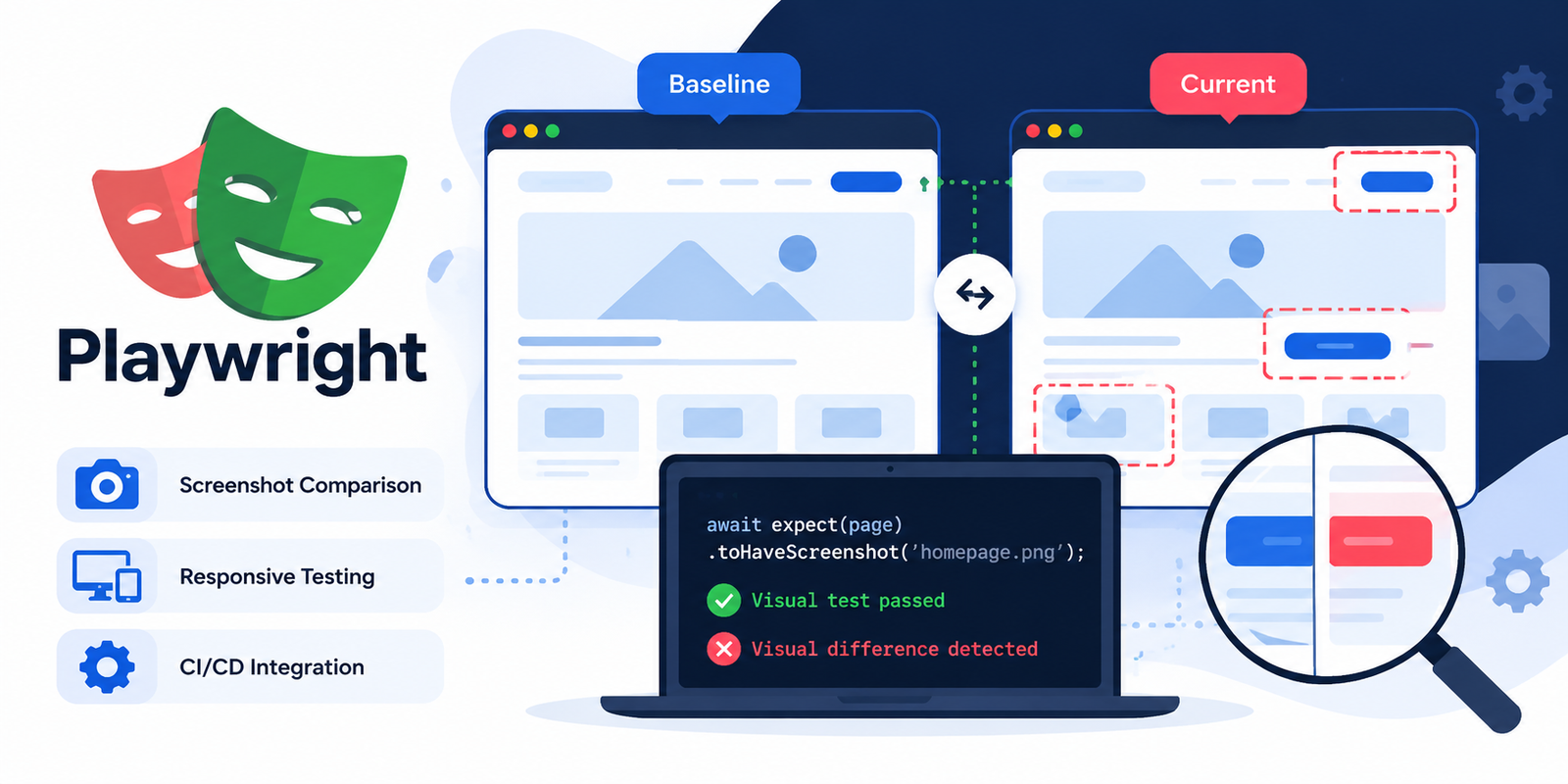
As modern web applications become more interactive and responsive, developers need ways to detect unintended visual changes before they reach production. Visual regression testing helps identify UI differences by comparing screenshots of the current application against approved reference images.
With Playwright, you can add screenshot-based visual checks directly to your existing automated testing suite without necessarily introducing another testing framework.
Let’s explore how it works, how to implement it, and how to make it reliable in a real development workflow.
What Is Visual Regression Testing?
Visual regression testing is a software testing technique that detects unintended changes in the appearance of a user interface.
It captures a screenshot of a page or component and compares it with a previously approved screenshot, often called a baseline.
The basic workflow looks like this:
Approved UI
|
v
Baseline Screenshot
|
v
Code or CSS Changes
|
v
Capture New Screenshot
|
v
Compare Both Images
|
v
Review Visual Differences
If the new screenshot differs from the baseline beyond the configured tolerance, the test reports a failure.
For example, a CSS change might accidentally reduce a button’s width, shift a heading, or hide an important element. A visual regression test can detect these differences even when the page still loads successfully.
Visual differences are not always bugs. A redesign will naturally change screenshots, so the results must be reviewed before deciding whether a change is acceptable.
Why Traditional Automated Tests Can Miss UI Bugs
Most web applications use several types of automated tests.
- Unit tests: Verify individual functions and components.
- Integration tests: Verify that multiple components work together.
- API tests: Check request and response behavior.
- End-to-end tests: Verify complete user workflows.
- Visual regression tests: Detect unexpected changes in rendered appearance.
Consider a login form.
A functional test might verify that a user can enter an email address, submit a password, and reach the dashboard.
But it may not detect that:
- The login button has moved below the visible screen area.
- The error message overlaps the password field.
- The logo has disappeared.
- The form is too wide on a mobile device.
- The text color makes the button label difficult to read.
- The modal extends beyond the viewport.
The functionality may still pass while the user experience deteriorates.
Visual regression testing adds another layer of protection.
How Playwright Visual Testing Works
Playwright Test includes built-in screenshot comparison through the toHaveScreenshot() assertion.
According to the official Playwright visual comparisons documentation, the first run creates reference screenshots, and subsequent runs compare the rendered page against those references.
You can test an entire page or an individual component.
Step 1: Install Playwright
If your project doesn’t already use Playwright, install it with:
npm init playwright@latest
Follow the setup prompts to configure your project and install the required browser binaries.
If Playwright is already configured, you can use your existing test suite.
Step 2: Create a Visual Regression Test
Create a file named homepage.visual.spec.ts:
import { test, expect } from ‘@playwright/test’;
test(‘homepage visual regression’, async ({ page }) => {
await page.setViewportSize({
width: 1440,
height: 900,
});
await page.goto(‘http://localhost:3000’);
await expect(page).toHaveScreenshot(‘homepage.png’);
});
This test opens the homepage at a defined viewport and compares its screenshot with the saved baseline.
On the first run, Playwright creates the reference screenshot. Subsequent runs compare the latest rendering against it.
Run the test with:
npx playwright test homepage.visual.spec.ts
Review the generated baseline before treating it as the approved appearance of your application.
Step 3: Understand Screenshot Failures
Suppose a developer changes a CSS rule:
.primary-button {
padding: 8px 12px;
}
The original button looked correct, but the new styling makes it noticeably smaller.
The functional tests might still pass because the button remains clickable.
The visual test can report a difference between the current screenshot and the approved baseline.
The developer can then inspect the difference and determine whether it represents an actual regression or an intentional design change.
Testing Individual Components
Comparing an entire page is useful, but sometimes you only need to protect a specific component.
For example, a shared navigation bar might appear across the customer application, admin dashboard, and employee portal.
You can test the component directly:
import { test, expect } from ‘@playwright/test’;
test(‘navigation bar visual regression’, async ({ page }) => {
await page.goto(‘http://localhost:3000’);
const navbar = page.getByRole(‘navigation’);
await expect(navbar).toHaveScreenshot(‘navbar.png’);
});
This captures the navigation element rather than the entire page.
Component-level checks can make failures easier to investigate because unrelated content is less likely to affect the comparison.
You can use a similar approach for:
- Login forms
- Dropdown menus
- Data tables
- Dialog boxes
- Product cards
- Dashboard widgets
- Pagination controls
- Notification banners
Testing Responsive Layouts
Responsive design is one of the most valuable use cases for visual regression testing.
A page may look correct on a desktop while breaking on a tablet or mobile phone.
For example, a navigation menu may wrap onto multiple lines, a card grid may overflow horizontally, or a form may become difficult to use.
You can define tests for multiple viewport sizes:
import { test, expect } from ‘@playwright/test’;
const viewports = [
{ name: ‘desktop’, width: 1440, height: 900 },
{ name: ‘tablet’, width: 768, height: 1024 },
{ name: ‘mobile’, width: 390, height: 844 },
];
for (const viewport of viewports) {
test(`homepage layout – ${viewport.name}`, async ({ page }) => {
await page.setViewportSize({
width: viewport.width,
height: viewport.height,
});
await page.goto(‘http://localhost:3000’);
await expect(page).toHaveScreenshot(
`homepage-${viewport.name}.png`
);
});
}
Each viewport produces its own baseline.
This makes it easier to catch layout regressions before they affect users on different devices.
Keep in mind that viewport coverage is not the same as testing every physical device. Browser, operating system, font rendering, and device pixel ratio can also influence screenshots.
How to Handle Dynamic Content
One of the biggest challenges in visual regression testing is dynamic content.
Imagine a dashboard containing:
- Current timestamps
- Randomized usernames
- Live stock prices
- Rotating banners
- Animated charts
- Frequently changing notifications
Two screenshots may differ even when the UI is functioning correctly.
This creates noisy test failures.
Use Predictable Test Data
Whenever possible, seed the application with known test data.
For example, instead of displaying randomly generated users, use a fixed set of test accounts.
Likewise, avoid using live API responses for screenshots that need to remain stable.
Mask Dynamic Elements
Playwright supports masking elements during screenshot assertions.
For example:
import { test, expect } from ‘@playwright/test’;
test(‘dashboard visual regression’, async ({ page }) => {
await page.goto(‘http://localhost:3000/dashboard’);
await expect(page).toHaveScreenshot(‘dashboard.png’, {
mask: [
page.locator(‘[data-testid=”current-time”]’),
],
});
});
The masked region is visually replaced during comparison, reducing failures caused by changing content.
However, masking should be selective. If you hide too much of the page, you may also hide genuine visual defects.
For more options, see Playwright’s official visual testing guide.
Managing Screenshot Baselines
Baselines are the foundation of visual regression testing.
If the reference image is incorrect, the comparison will not provide useful protection.
A good workflow includes:
- Generate the initial screenshot.
- Review it carefully.
- Commit approved baselines to version control.
- Run visual tests when the application changes.
- Review differences whenever a test fails.
- Update baselines only when the visual change is intentional.
Playwright provides a command to update screenshots:
npx playwright test –update-snapshots
Use this command deliberately. Automatically replacing every failing baseline without reviewing the differences can hide real UI regressions.
For teams working on larger applications, baseline updates should be part of the pull request review process.
Why Visual Tests Sometimes Fail in CI
A common problem is that a visual test passes locally but fails in the CI pipeline.
This can happen even when the application code hasn’t changed.
Screenshot output can vary because of:
- Different operating systems
- Different browser versions
- Font rendering
- Device pixel ratios
- Browser settings
- Timing differences
- Animations and transitions
The Playwright documentation explicitly warns that screenshots can vary across rendering environments.
Use a Consistent Environment
A reliable setup uses the same browser version, operating system, fonts, viewport, and relevant browser settings when generating baselines and running comparisons.
For example, if CI uses a Playwright Docker image, generating and reviewing baselines in that same environment can reduce platform-related differences.
Also ensure the page is in a predictable state before capturing a screenshot.
You can disable animations for an assertion:
await expect(page).toHaveScreenshot(‘homepage.png’, {
animations: ‘disabled’,
});
Playwright already disables animations by default for screenshot assertions, but specifying the option makes the intent clear.
Avoid using excessively permissive thresholds just to make flaky tests pass. A threshold that is too high may allow important visual defects to go unnoticed.
Integrating Visual Testing into CI/CD
Visual regression testing becomes more valuable when it runs automatically on pull requests.
A typical workflow looks like this:
Developer Opens Pull Request
|
v
Install Dependencies
|
v
Unit Tests
|
v
Integration Tests
|
v
Playwright Visual Tests
|
v
Review Differences
|
v
Approve or Reject
|
v
Merge
For example, a GitHub Actions job could run Playwright tests with:
– name: Install dependencies
run: npm ci
– name: Install Playwright browsers
run: npx playwright install –with-deps chromium
– name: Run visual regression tests
run: npx playwright test
This assumes your Playwright configuration and test files are already committed and configured to run in the CI environment.
For a larger application, consider separating visual tests from other tests so the team can control when they run and how their artifacts are reviewed.
When a test fails, preserve the screenshots and comparison output as CI artifacts where practical. These make it easier for developers to investigate the problem.
Visual Regression Testing vs Functional Testing
These testing approaches complement each other.
| Area | Functional testing | Visual regression testing |
| Main purpose | Verify behavior | Detect visual changes |
| Button click | Checks the action | Checks appearance |
| API response | Verifies data and status | May reveal resulting UI changes |
| Layout shifts | May miss them | Can detect them |
| Missing element | Depends on assertions | Often appears as a visual difference |
| Responsive layout | Can check behavior and visibility | Compares appearance at selected viewports |
| Typical tools | Playwright, API test tools | Playwright, Percy, Chromatic |
Playwright can support both functional and visual checks within the same project.
Tools such as Percy and Chromatic may also be useful when teams need hosted screenshot review workflows or specialized visual testing for component libraries.
The right choice depends on the application’s needs, team size, and review process.
Common Mistakes to Avoid
Visual regression testing is useful, but several mistakes can make it unreliable.
1. Capturing screenshots too early
If fonts, images, or application data have not finished loading, screenshots may be inconsistent. Wait for the relevant page state rather than relying on arbitrary delays.
2. Approving baselines without reviewing them
A baseline should represent the intended design, not simply whatever the application happened to render during the first run.
3. Masking too much content
Mask only the regions that genuinely contain unpredictable information.
4. Ignoring mobile layouts
Desktop screenshots alone cannot protect the mobile experience.
5. Running tests in inconsistent environments
Different rendering environments can produce noise that looks like a regression.
6. Treating every difference as a defect
Some differences are intentional. Review the comparison before changing the code or updating the baseline.
7. Replacing all baselines automatically
This can make the test suite pass while allowing actual UI problems to remain undetected.
A Practical Strategy for Full-Stack Teams
You don’t need to add visual tests to every page immediately.
Start with the parts of the application where a visual defect would have the greatest impact.
For example:
- Login and registration pages
- Main navigation
- Critical dashboards
- Checkout and payment screens
- Forms with validation errors
- Shared design-system components
- Responsive layouts
Then combine visual checks with existing API, integration, and end-to-end tests.
A balanced strategy might look like this:
Unit Tests
|
v
API and Integration Tests
|
v
Visual Regression Tests
|
v
End-to-End Tests
|
v
CI/CD Validation
This isn’t a strict order that every project must follow. The objective is to use the right type of test for each risk.
Functional assertions verify behavior. Visual assertions protect appearance. Together, they provide broader coverage than either approach alone.
Final Thoughts
A web application can pass its functional tests and still deliver a poor user experience.
A button can move, a layout can break, or an important element can disappear without causing an API or JavaScript error.
Visual regression testing helps catch those problems before they reach production.
With Playwright’s built-in toHaveScreenshot() assertion, teams can introduce screenshot comparisons into their existing browser tests, protect important components, verify responsive layouts, and review visual changes during development.
The most important part isn’t simply taking screenshots. It’s creating trustworthy baselines, keeping the rendering environment consistent, and reviewing differences before accepting them.
You don’t need to test every pixel of every page. Start with critical user journeys and shared components, then expand coverage as the application grows.
Because in modern web development, a successful release isn’t just one where every test passes.
It’s one where the application works correctly and looks the way users expect.
SEO Details
SEO title: Visual Regression Testing with Playwright: Catch UI Bugs
Meta description: Learn how to implement visual regression testing with Playwright, compare screenshot baselines, test responsive layouts, reduce flaky failures, and integrate visual checks into CI/CD.
Suggested URL slug: visual-regression-testing-playwright
Primary keyword: Visual regression testing with Playwright
Secondary keywords: Playwright screenshot testing, automated UI testing, visual testing in CI/CD, frontend testing, responsive UI testing
