
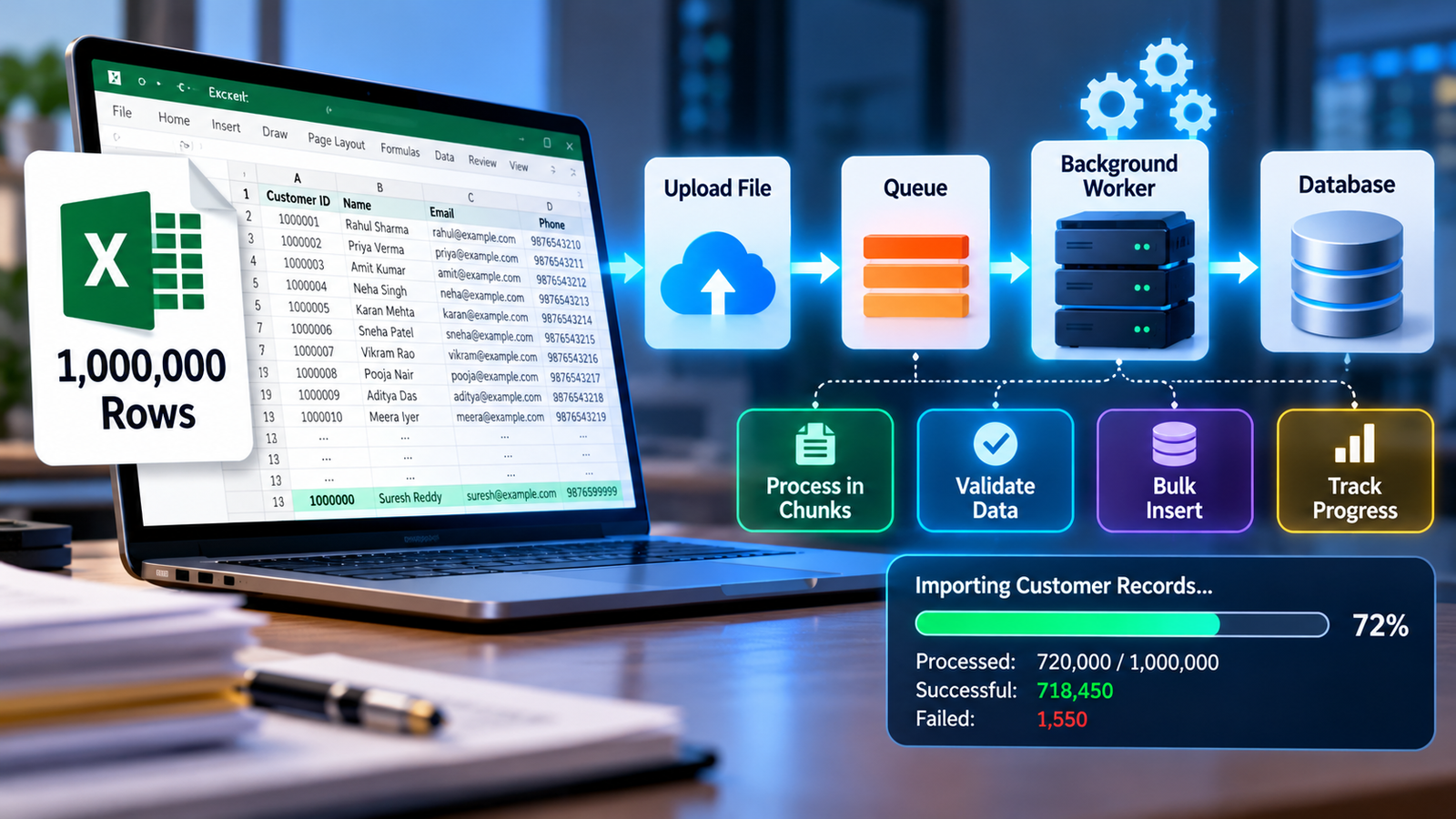
Uploading an Excel file is easy. However, processing 1 million Excel rows safely in production requires careful planning, efficient database operations, and reliable error handling.
Imagine an administrator uploading an Excel file containing one million customer records. A simple implementation might read every row, validate the data, insert records into the database, and return a response.
This approach may work for 500 rows, but with one million rows, it can cause high memory usage, request timeouts, slow database operations, duplicate records, and incomplete imports.
The solution is to design a system that processes large datasets efficiently without affecting the application’s performance.
1. Avoid Processing Everything in One Request
Processing an entire Excel file inside a single HTTP request can cause server timeouts.
Instead, separate file uploading from data processing.
A better workflow is:
Upload File → Store File → Create Import Job → Process in Background
The API can respond quickly while the application processes the file asynchronously.
2. Use Queues and Background Workers
Background queues allow large imports to run without keeping the user’s browser request open.
A typical architecture looks like this:
Frontend ↓ Upload API ↓ File Storage ↓ Queue ↓ Background Worker ↓ Database
The API can return an import ID immediately. The frontend can use this ID to check the import status.
This approach improves responsiveness and makes failures easier to manage.
3. Process Data in Chunks
Never assume that loading one million rows into memory at once is a good idea.
Instead, divide the spreadsheet into smaller chunks.
For example:
1,000,000 Rows ↓ Chunk 1: 5,000 Rows Chunk 2: 5,000 Rows Chunk 3: 5,000 Rows ↓ Process Remaining Chunks
The ideal chunk size depends on available memory, row complexity, database performance, and application requirements.
Chunk processing reduces memory usage and makes failed operations easier to recover.
4. Validate Each Chunk
Large spreadsheets often contain invalid records, missing fields, incorrect data types, or duplicate entries.
Validate each chunk before inserting records.
For example:
Total Rows: 1,000,000 Successful Rows: 998,760 Failed Rows: 1,240
These figures are illustrative.
Instead of stopping the entire import because a few rows are invalid, record the errors separately and continue processing valid records when the business rules allow it.
5. Optimize Database Inserts
Inserting one row at a time can create unnecessary database overhead.
Use bulk inserts to write validated records in batches.
5,000 Rows ↓ Validate ↓ Transform ↓ Bulk Insert ↓ Database
Also, review database indexes, avoid unnecessary queries, and monitor database performance.
Batch sizes should be tested to prevent excessive memory usage or database overload.
6. Prevent Duplicate Records
Duplicate data can appear within the spreadsheet or already exist in the database.
Decide whether duplicate records should be skipped, updated, rejected, or merged.
Database constraints provide an additional layer of protection.
For example, a unique constraint on an email column can prevent duplicate email addresses when uniqueness is required.
Upserts can also be useful when existing records need to be updated.
7. Handle Worker Failures and Retries
Imagine a worker crashes after processing 350,000 rows.
Restarting the entire import wastes resources and increases the risk of duplicate processing.
Instead, track progress and completed chunks.
Import ID: 123 Total Rows: 1,000,000 Processed: 350,000 Status: Processing
Design the import to resume from unfinished work.
Use idempotent processing, unique constraints, and safe retry logic so that processing the same chunk again does not corrupt the final dataset.
8. Show Progress to Users
A large import should not leave users staring at a loading message.
Display useful information such as:
Importing Customer Records Progress: 72% Processed: 720,000 / 1,000,000 Successful: 718,450 Failed: 1,550
The frontend can periodically request the import status through an API.
This improves transparency and helps users understand whether processing is progressing or has failed.
9. Generate a Failed-Row Report
Users should not have to search through one million rows to find errors.
Generate a report such as failed_rows.xlsx containing:
- Original row number
- Invalid data
- Error description
For example:
| Row Number | Error | |
|---|---|---|
| 45821 | invalid-email | Invalid email format |
| 61240 | Missing | Required field is missing |
Users can correct the affected records and upload them again.
10. Protect the Database
Large imports can compete with normal application traffic.
If workers execute too many queries simultaneously, regular users may experience slow APIs, increased latency, and database timeouts.
To prevent this:
- Limit worker concurrency.
- Use appropriate chunk sizes.
- Optimize bulk inserts.
- Monitor database resources.
- Apply queue throttling when necessary.
- Schedule heavy imports during low-traffic periods when appropriate.
The goal is to finish the import without slowing down the rest of the application.
11. Practical Laravel Example
In Laravel, a controller can store the uploaded file, create an import record, and dispatch a background job.
public function import(Request $request)
{
    $request->validate([
        'file' => 'required|file|mimes:xlsx,csv|max:51200',
    ]);

    $path = $request->file('file')->store('imports');

    $import = Import::create([
        'file_path' => $path,
        'status' => 'pending',
    ]);

    ProcessImport::dispatch($import->id);

    return response()->json([
        'message' => 'Import started',
        'import_id' => $import->id,
    ], 202);
}
This example assumes the Import model and ProcessImport job are implemented.
The queued job should handle chunk reading, validation, database inserts, progress tracking, and error reporting.
Libraries such as Laravel Excel provide features for chunk reading and queued imports.
Remember that queues alone do not guarantee safe processing. Proper chunking, idempotency, and failure handling are also essential.
12. Production Checklist
Before deploying a large Excel import, verify the following.
File Handling
- Validate file type and size.
- Store uploaded files reliably.
- Clean up temporary files safely.
Processing
- Use background jobs.
- Read data in chunks.
- Validate records before insertion.
Database
- Use bulk operations.
- Prevent duplicates.
- Monitor database performance.
Reliability
- Support safe retries.
- Track completed chunks.
- Resume failed imports.
User Experience
- Display import progress.
- Show successful and failed row counts.
- Provide a downloadable error report.
Monitoring
- Track processing time.
- Log worker failures.
- Monitor memory and CPU usage.
Conclusion
Processing one million Excel rows is not simply an Excel problem. It is a system-design challenge.
A reliable import system combines asynchronous processing, chunk reading, data validation, bulk database operations, duplicate prevention, progress tracking, and error handling.
The recommended workflow is:
Upload → Storage → Queue → Worker → Chunk Processing → Validation → Bulk Insert → Progress Tracking → Error Reporting → Completion
The exact implementation depends on the application’s infrastructure and workload.
The goal is not just to process one million rows quickly. It is to process them reliably, safely, and without disrupting other users.
That is what turns a basic Excel upload into a production-ready data-processing system.
